A USB hub is a small device that turns one USB port on your computer into several, so you can plug in more peripherals than your laptop has room for. The part most product pages skip: everything you connect shares that single connection's bandwidth and—on cheaper models—its power, which is exactly why choosing the right type matters more than the port count on the box. Below is how a hub actually works, the types worth knowing, how a hub differs from a docking station, and how to choose without buying the wrong thing.
Table of Contents
• What is a USB Hub?
• How Does a USB Hub Work?
• Does a USB hub slow down your devices?
• Types of USB Hubs
• USB Hub vs. Docking Station: Which Do You Actually Need?
• Common Mistakes to Avoid
• Can a USB hub charge your laptop?
• What to Check Before You Buy: Power, Speed, and Compatibility
• How to Choose the Right USB Hub
• The Bottom Line
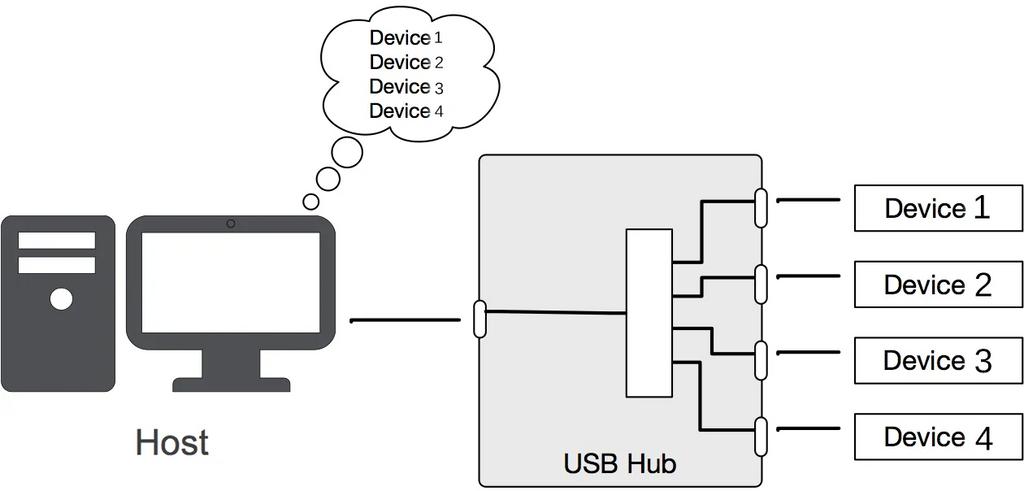
A USB hub is a device that expands a single USB port into multiple ports, letting you connect several USB devices to one host at the same time. The common comparison is a power strip for USB—and it's a useful starting picture—but it understates one thing: a hub doesn't create new capacity. Every device behind the hub shares the one connection that links the hub back to your computer.
A hub has one upstream port (the side that plugs into your computer) and several downstream ports (the side your keyboard, mouse, flash drive, and other peripherals plug into). To your operating system, a device plugged into a downstream port behaves as if it were connected directly to the machine. You'll sometimes see hubs called "USB splitters" or "port expanders" in casual use; they're the same idea.
When you plug a hub into your computer, the upstream port carries all traffic to and from every connected device through that one link. A controller chip inside the hub routes data and power to each downstream port and reports each attached device to the host so it can be recognized and used.
The detail that decides whether a hub feels fast or frustrating is bandwidth sharing. The connection between the hub and your computer has a fixed ceiling set by its USB generation, and all the downstream devices divide that ceiling among themselves. Copy a file from a flash drive while an external SSD is also transferring through the same hub, and both compete for the same pipe.
There's a second layer on USB 2.0–era traffic: the Transaction Translator (TT), the part of the hub that lets slower le-gacy devices share a faster host connection. A hub can use a single transaction translator (STT), where all the low- and full-speed devices funnel through one translator and can bottleneck each other, or multiple transaction translators (MTT), where each downstream port gets its own. For a setup with several slower peripherals running at once, an MTT design holds up noticeably better—worth checking on a hub's spec sheet if you'll be loading it up.
Does a USB hub slow down your devices?
It can, but not because the hub is "weak"—it's the shared connection. A USB 3.2 Gen 1 hub gives the whole hub a 5 Gbps ceiling to split; hang two fast storage drives off it and neither gets the full amount. The fix isn't a magic chip; it's matching the hub's generation to your fastest device and not expecting one cable to carry everything at full speed simultaneously.
For scale: the USB specification allows up to 127 devices per host controller, cascaded across as many as five tiers of hubs. That's a theoretical ceiling, not a practical target—power and bandwidth run out long before the device count does.
It helps to sort hubs along three axes, because a single hub sits somewhere on each.
By power source. A bus-powered hub draws all its power from the computer's USB port. It's compact, needs no wall outlet, and is ideal for low-draw devices like keyboards, mice, and flash drives. A self-powered hub (often labeled a powered hub) includes its own AC adapter, so it can supply steady power to demanding peripherals such as external hard drives, scanners, and printers. The trade-off is size and an extra cable.
By connector and capability. A basic hub—USB-A or USB-C—just adds more USB ports. A USB-C multiport hub adds non-USB outputs like HDMI, Ethernet, and an SD card reader, so it starts to overlap with what people expect from a dock (more on that distinction next).
▪ By speed generation. This sets the hub's bandwidth ceiling.
▪ USB 2.0 tops out at 480 Mbps.
▪ USB 3.2 Gen 1 (you'll also see it called USB 3.0, or by the USB-IF marketing name USB 5Gbps) runs at 5 Gbps; Gen 2 at 10 Gbps; Gen 2x2 at 20 Gbps.
▪ USB4 reaches up to 40 Gbps.
Match this to your fastest device—a 10 Gbps SSD behind a 5 Gbps hub is capped at 5 Gbps.
USB Hub vs. Docking Station: Which Do You Actually Need?
This is the question most "what is a USB hub" searches lead to next, and getting it wrong is the most common way people waste money here. The two look similar—both add ports through one cable—but they solve different problems.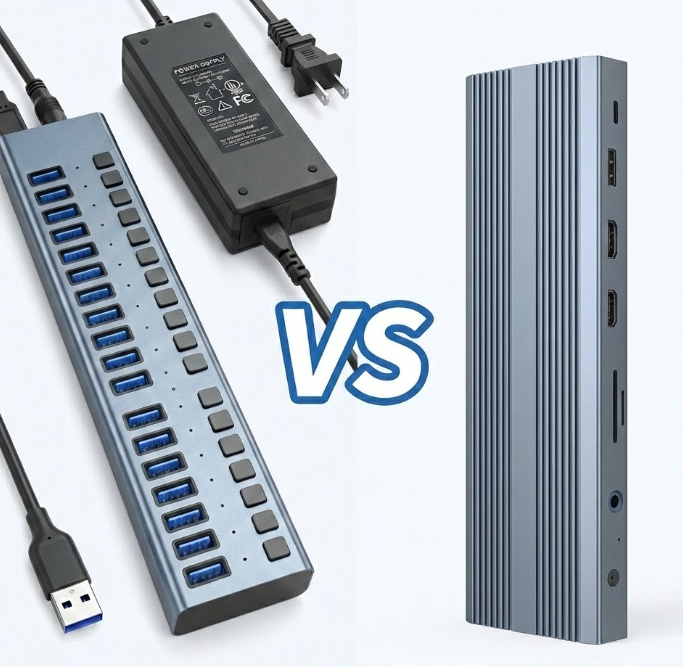
|
USB Hub |
Docking Station |
|
|
Power source |
Usually draws power from your computer |
Plugs into the wall; has its own supply |
|
Charges your laptop? |
Generally no (a powered/PD model can pass some power through, but less than its input rating) |
Yes—commonly pushes meaningful wattage back to the host |
|
Video output |
Only on USB-C multiport models, and depends on host support |
Standard, often multiple monitors |
|
Ethernet / audio / card reader |
Sometimes (multiport models) |
Typically included |
|
Size & use |
Small, portable, travel-friendly |
Larger, desk-bound, "dock once and go" |
The short version: if you mainly need more USB ports and want something you can throw in a bag, a hub is the right tool. If you want to drop a laptop on a desk and have monitors, wired internet, peripherals, and charging all come alive through one connection, that's a docking station. A USB-C multiport hub sits in between—useful when you need HDMI or Ethernet on the go but don't need to charge the laptop from it.
Expecting a bus-powered hub to run power-hungry gear. A bus-powered hub only has as much power to share as the host port gives it—roughly 2.5W on a USB 2.0 port and about 4.5W on a USB 3.x port, split across everything attached. External hard drives and similar devices need a self-powered hub.
Overloading one shared connection. Several high-speed devices behind a single hub will compete for the same upstream bandwidth. Connect your most demanding device (fast storage, a capture device) directly to the computer, and use the hub for the lighter peripherals.
Assuming any USB-C port can output video. A USB-C multiport hub can only drive a monitor if the host's USB-C port supports DP Alt Mode (DisplayPort signaling carried over USB-C). Check your laptop's spec sheet before buying a hub for its HDMI port. On hosts that lack it, a DisplayLink-based hub is an alternative, but DisplayLink output requires installing a driver on both Windows and macOS. Note for Mac users: under DP Alt Mode, macOS supports mirroring to multiple displays but not MST-based extended multi-monitor, so confirm your specific multi-display need is supported.
Mostly no—and where it can, read the rating carefully. A hub advertised with, say, "100W PD" usually refers to PD input going into the hub, not what reaches your laptop. The hub and its connected peripherals draw their share first, so the usable PD output delivered to the host is lower—a 100W-input hub passing roughly 85W to the laptop isn't unusual. If charging the laptop is a real requirement, that's a strong signal you want a docking station rather than a hub.
Run through this short list against your own machine and your candidate hub:
▪ Your host's USB generation. It sets the realistic speed ceiling. A faster hub won't exceed what your computer's port supports.
▪ Video needs. If you want HDMI out, confirm your USB-C port supports DP Alt Mode (it's on the OEM specification sheet, usually under the port or connectivity section).
▪ Total device power. Add up what you'll plug in. Drives, optical devices, and fast-charging targets push you toward a self-powered hub.
▪ Region compliance. For products sold into the US, EU, or UK, look for the relevant marks—FCC SDoC for the US, CE for the EU, UKCA for the UK, and RoHS for restricted-substance compliance. For performance and interoperability, USB-IF certification indicates the device passed the standard's compliance testing.
▪ Read speed claims as a shared ceiling. A hub's rated speed is the theoretical maximum for the whole hub, divided among active ports—not a per-port guarantee.
Match the scenario to the type:
▪ Mostly keyboard, mouse, flash drives, and you travel → a bus-powered basic hub. Compact and adequate for low-draw devices.
▪ External drives, a printer, or several high-speed devices at once → a self-powered (powered) hub, ideally one whose speed generation matches your fastest device, and with MTT if you're running multiple slower peripherals together.
▪ You need HDMI or Ethernet on the go, but not laptop charging → a USB-C multiport hub. Confirm your host supports DP Alt Mode first.
▪ Multiple monitors, wired internet, and laptop charging at a fixed desk → a docking station, not a hub.
Next Steps
Before you buy, pull up your laptop's USB-C specification and note three things: whether it supports DP Alt Mode, its PD input wattage, and its USB generation. With those in hand, the decision framework above points cleanly to a category. If you're specifying or sourcing hubs in volume rather than buying a single unit, the same three checks—protocol generation, power direction, and certification status—are the right starting filter for a spec sheet.
A USB hub solves the "not enough ports" problem by expanding one connection into several, with the devices behind it sharing that connection's bandwidth and, on bus-powered models, its power. Choosing well comes down to three questions: how much power your devices need, what speed generation matches your fastest device, and whether you also need video, Ethernet, or laptop charging. If the answer to that last one is yes, it's pointing you past a hub toward a powered hub or a docking station.